
Ten cameras, one crew.
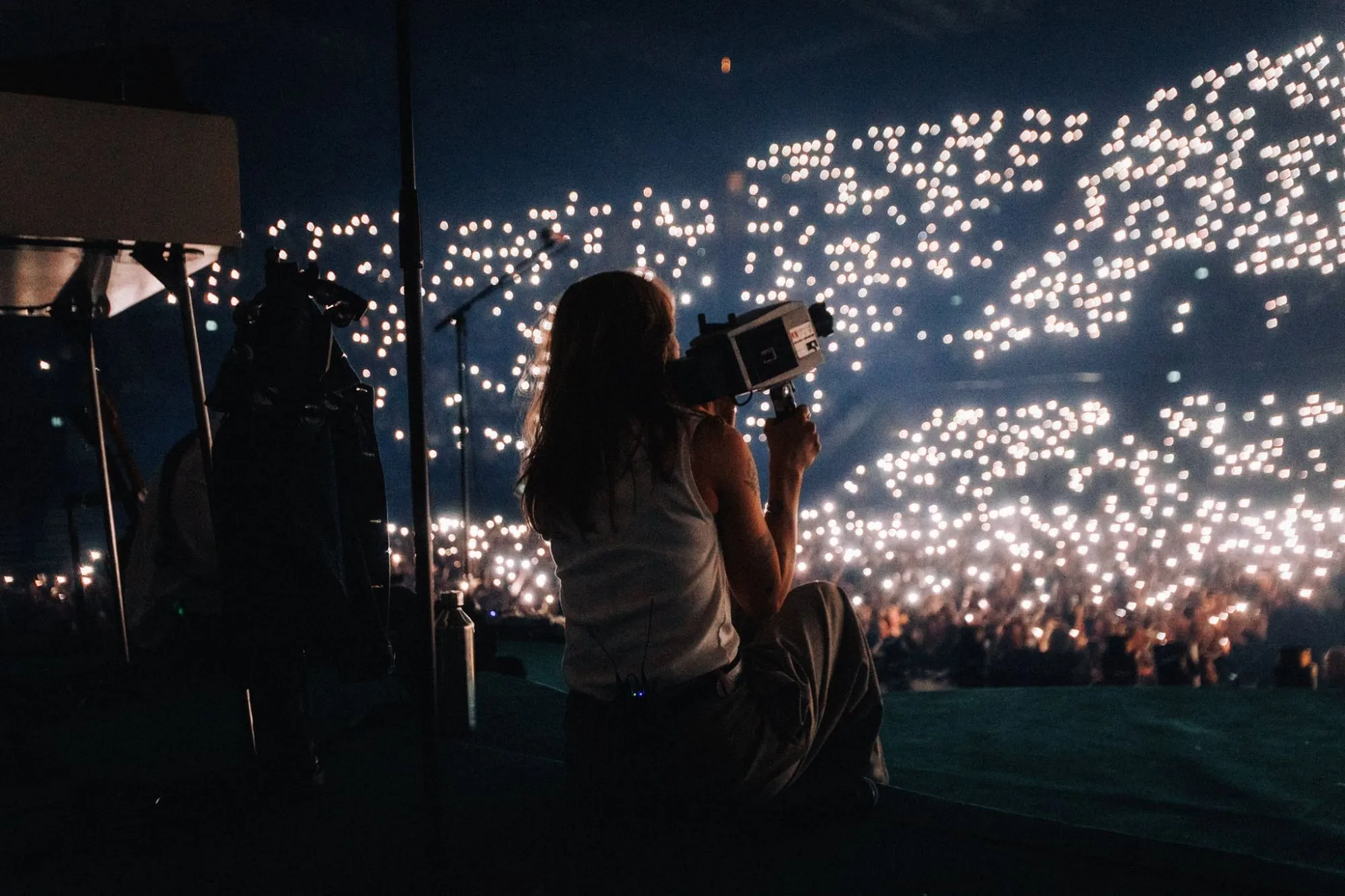
Two arena nights with Synne Vo: Sony system cameras, FX6s on a gimbal and a Steadicam, PTZ heads and a Blackmagic Micro hidden in a Super 8 camera. All of it shaded, switched and recorded through Multicam RCP.
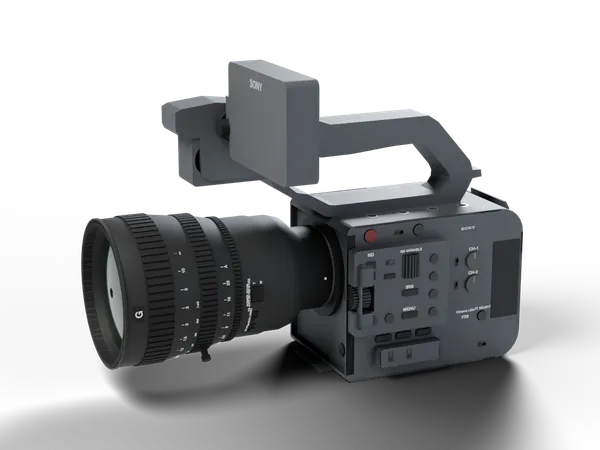
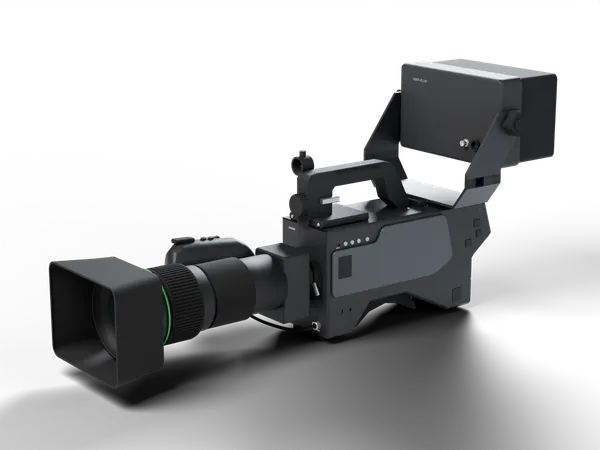
No AI in these photos or the video behind this headline. They are real, from the show: we just had a very good photographer. The device pictures in the diagrams are 3D renders, and the cards marked “On the multiview” are crops of the multiview screen.
- 10cameras
- 6camera models
- 4camera makers
- 3wireless control links
- 1shading panel for all of them
- 5recorders
The cameras
Pick a camera to see how Multicam reached it: control, tally, picture and intercom, end to end.
Solid lines are cables, dashed lines radio, dotted lines internet or 5G. Grey dashed boxes are examples, not used at the show. Click a device for its card.
Where the cameras stood
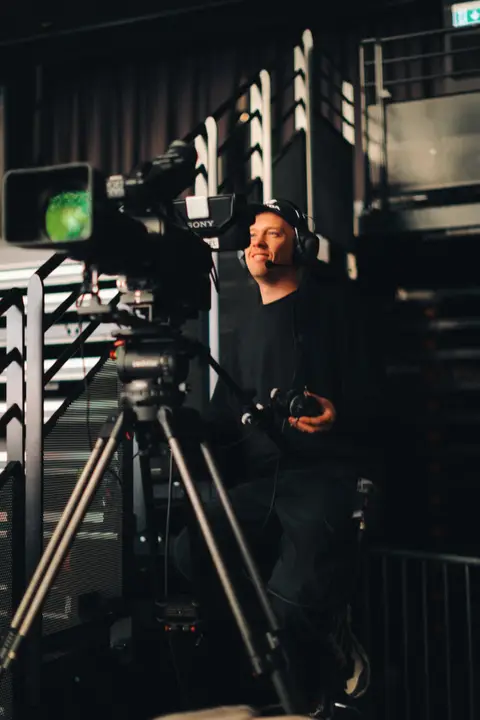
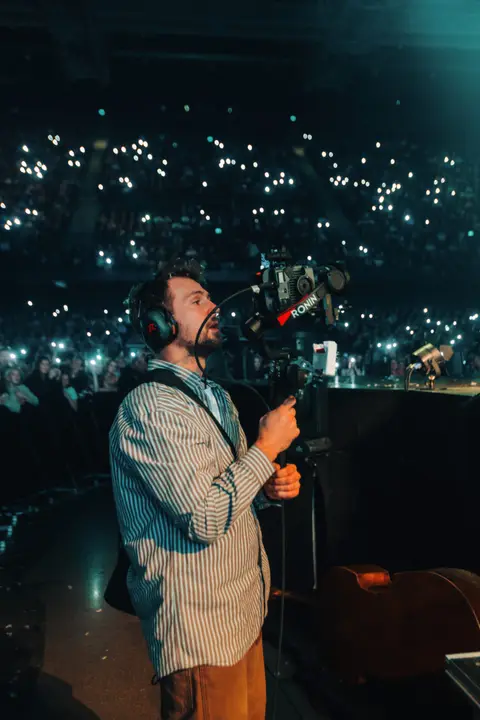
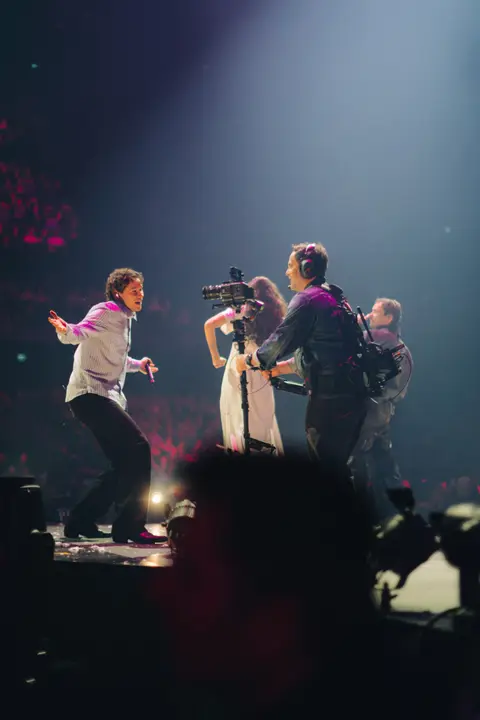
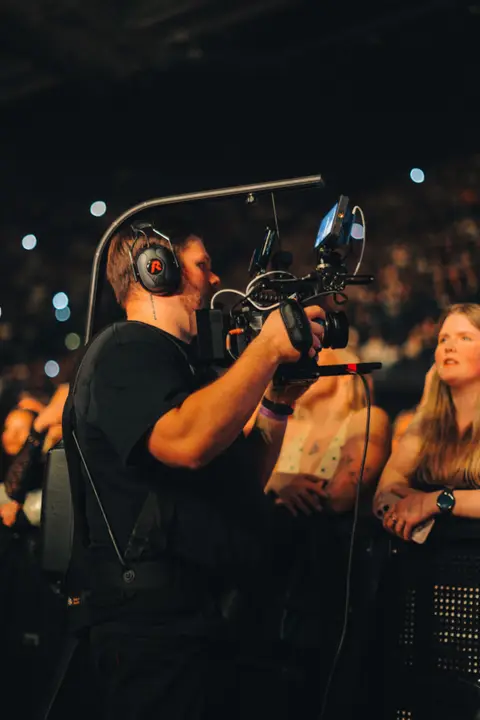
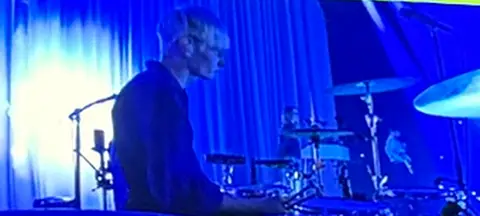
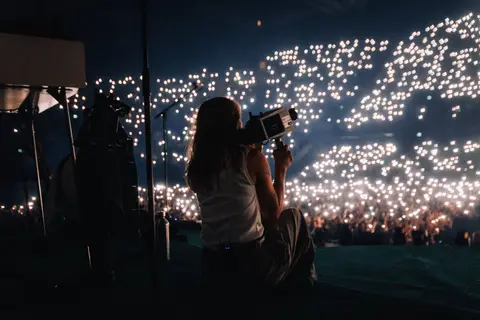
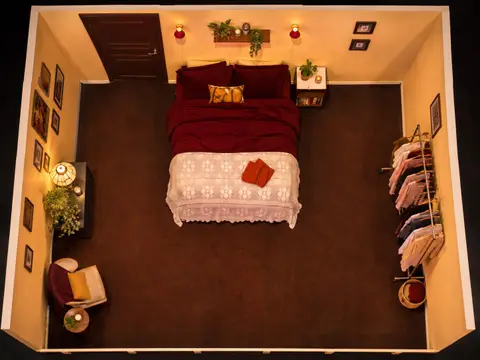
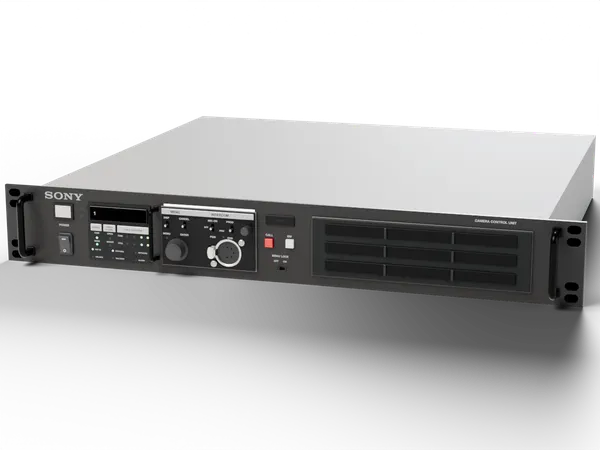
- 1Sony HDC-3500, 40x · FOH
- 2Sony HDC-3500, 40x · stage right
- 3Sony FX6 · gimbal
- 4Sony FX6 · Steadicam
- 5Sony FX6 · pit
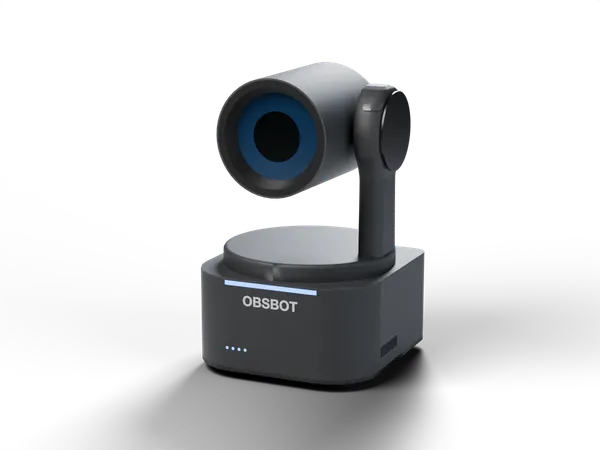
- 6OBSBOT Tail 2 · drums
- 7OBSBOT Tail 2 · keys
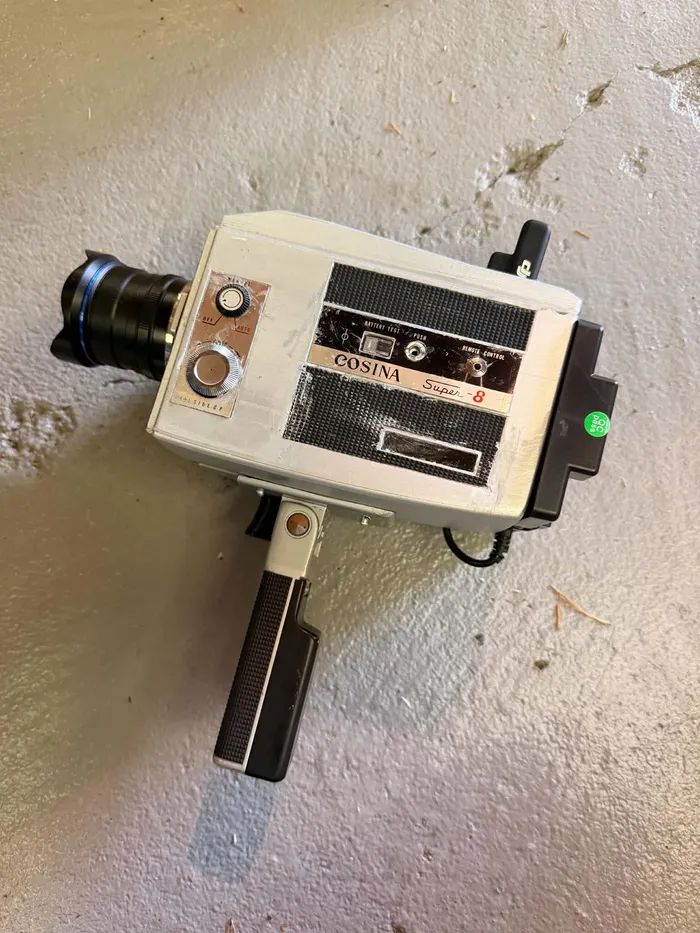
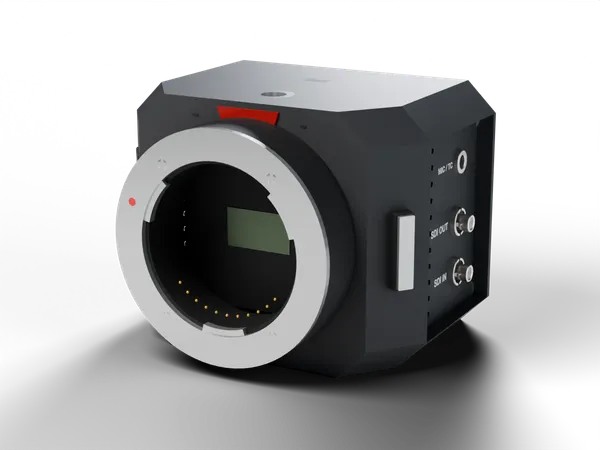
- 8Micro Studio in a Super 8 body
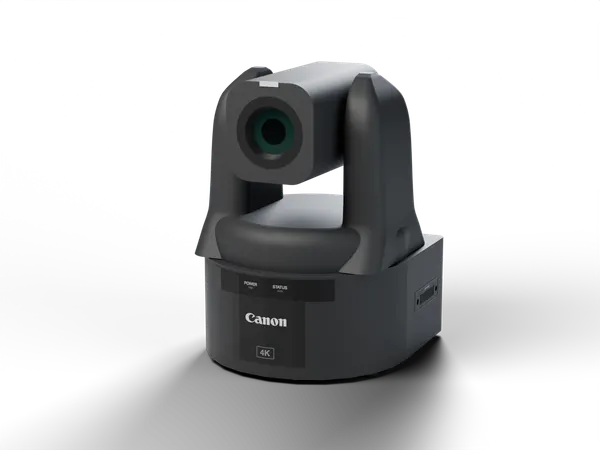
- 9Canon CR-N500 · bedroom set
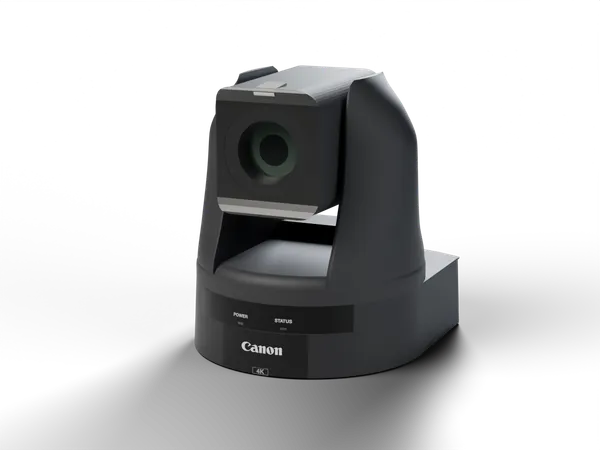
- 10Canon CR-N300 · wide
Camera positions and headings as placed in Multicam RCP's Map for the show. Beam widths and lengths are indicative.
Going wireless, three ways
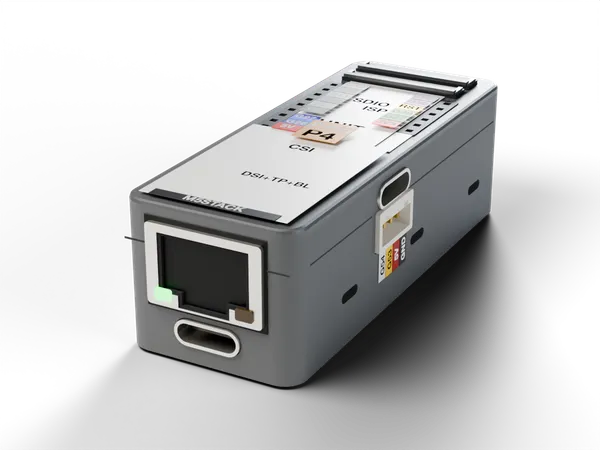
The cameras on stage had no cables for control. Each one carried an RCP Micro, Multicam's firmware on a small PoE board, and each used a different link home.
Cams 3 and 4: the RCP Micro talks to the FX6 over USB-C and to an iPhone on the rig, which carries control and an on-screen tally over 5G and Multicam Cloud.
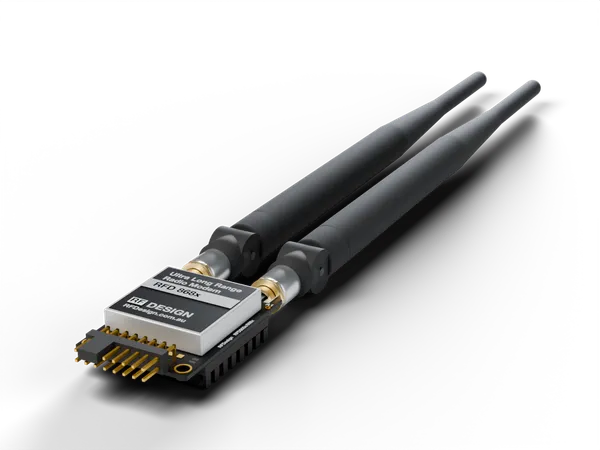
Cam 5: a pair of RFD 868x long-range serial radios, from the pit to the gallery.
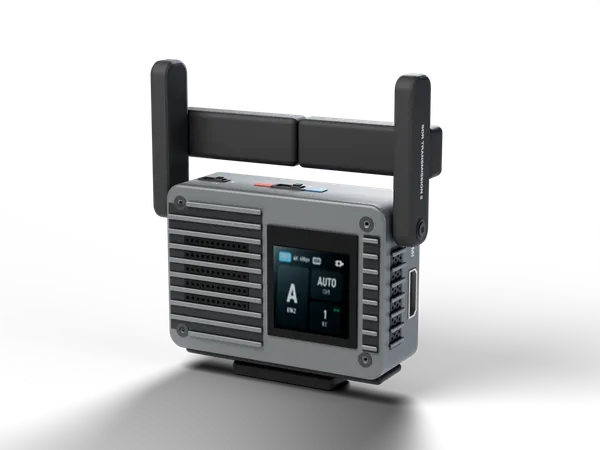
Cam 8: the DJI SDR 2's data channel carries camera control next to the picture, to a second RCP Micro at the receiver.
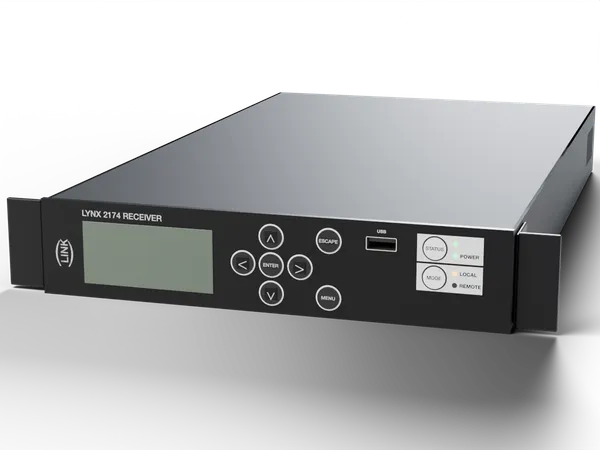
The Vislink transmitters and receivers were set up from Multicam RCP too: frequency, bandwidth, modulation and video mode on the Solo4 transmitters over their serial control port, and the matching settings on the L2174 receivers. Multicam's own transmitter and receiver tools replace the old vendor configuration programs, which only ran on Windows 7.
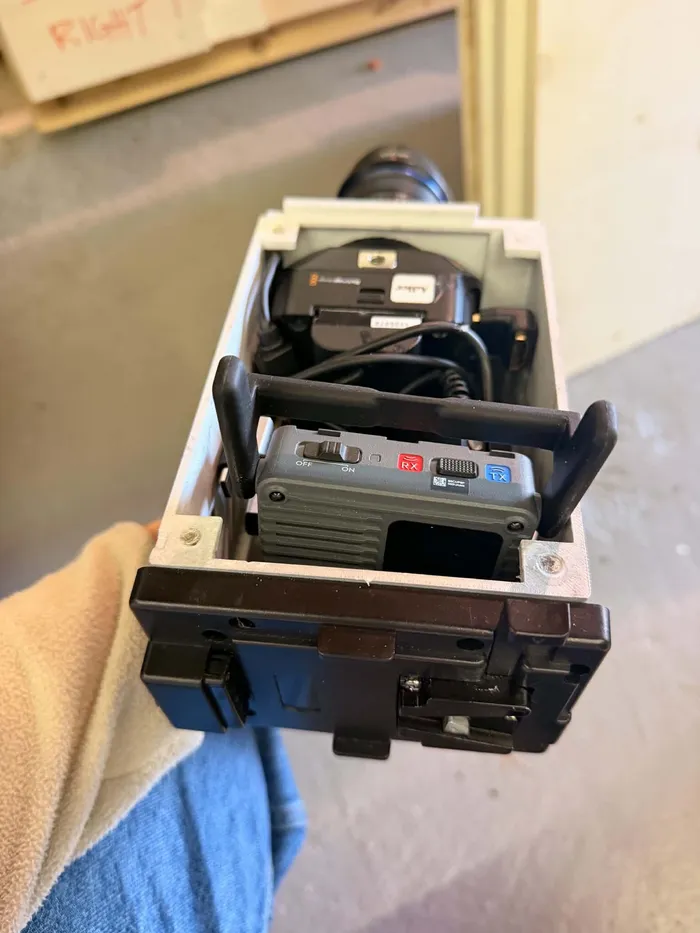
A Micro Studio Camera in a Super 8 body
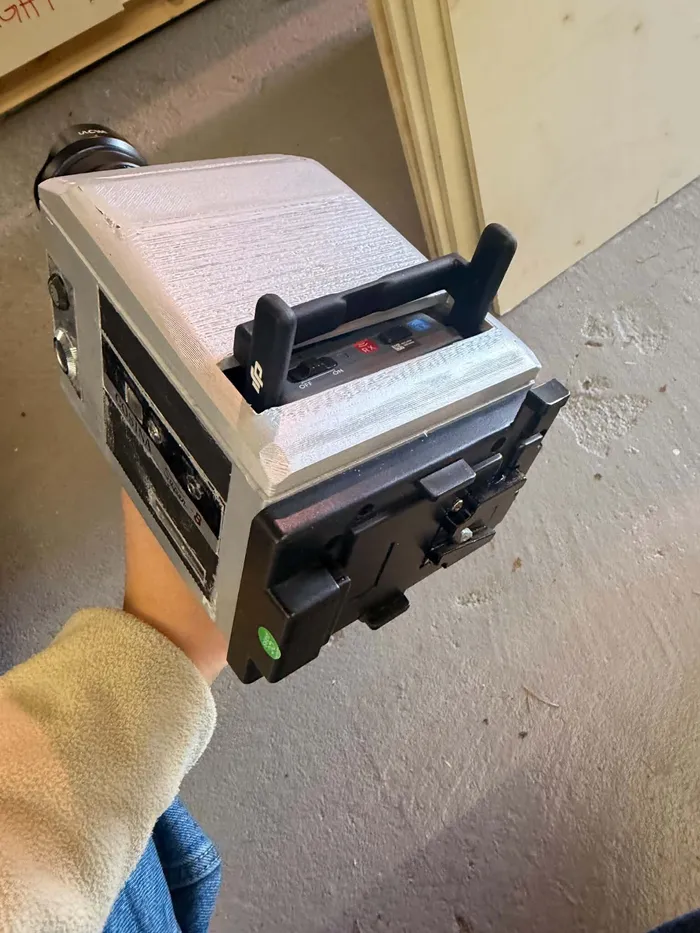
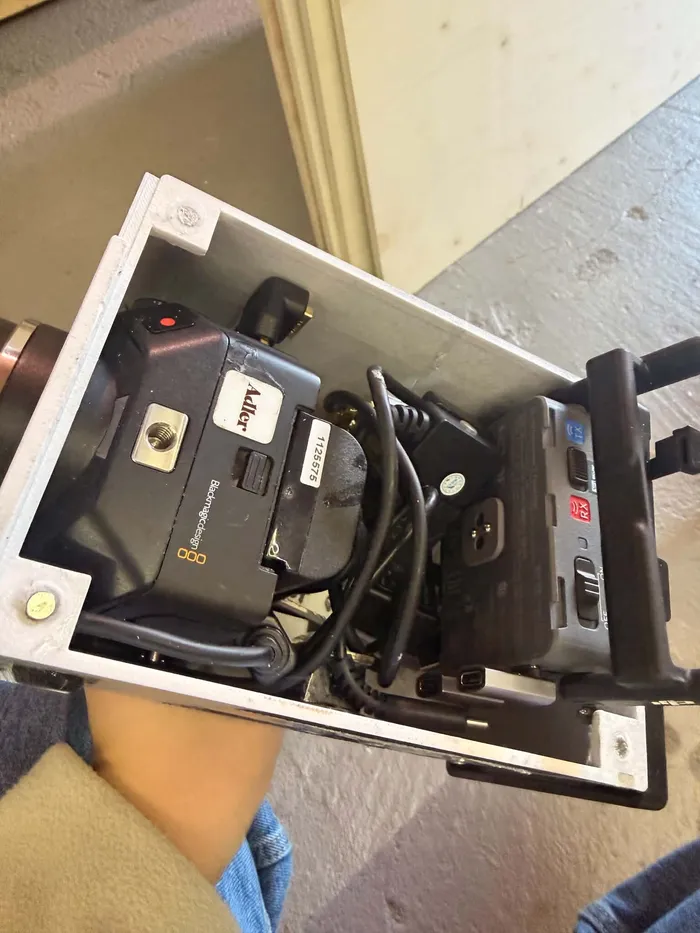
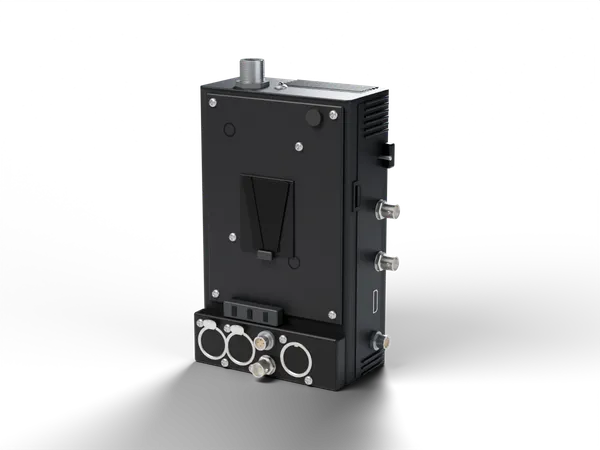
A custom enclosure built from a vintage Cosina Super 8 camera holds a Blackmagic Micro Studio Camera, an RCP Micro and the DJI SDR transmitter, with a V-lock battery on the back. Picture and camera control both go over the one radio link, so it's a wireless, remote-controlled camera that looks like a prop on stage.
Grass Valley and Panasonic panels. No Grass Valley or Panasonic cameras.
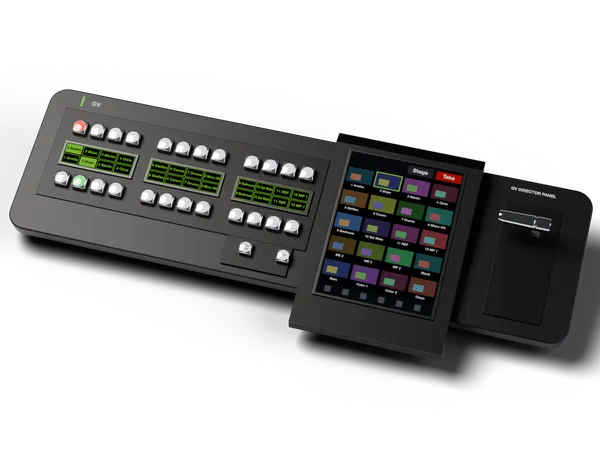
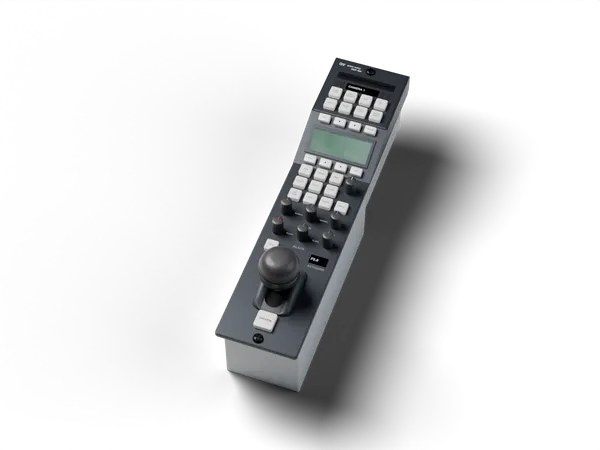
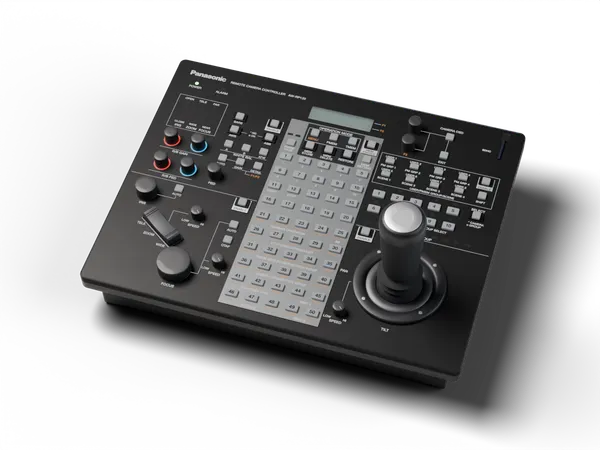
At the TOM seat, one Grass Valley OCP 400 shaded every camera, whatever the brand. It followed the camera picked on a Panasonic AW-RP120 or with keys 1–10 on the laptop, and several number keys together adjusted several cameras at once. The RP120's zoom and focus even drove the 40x lenses on the Sony system cameras, as if they were PTZ heads.
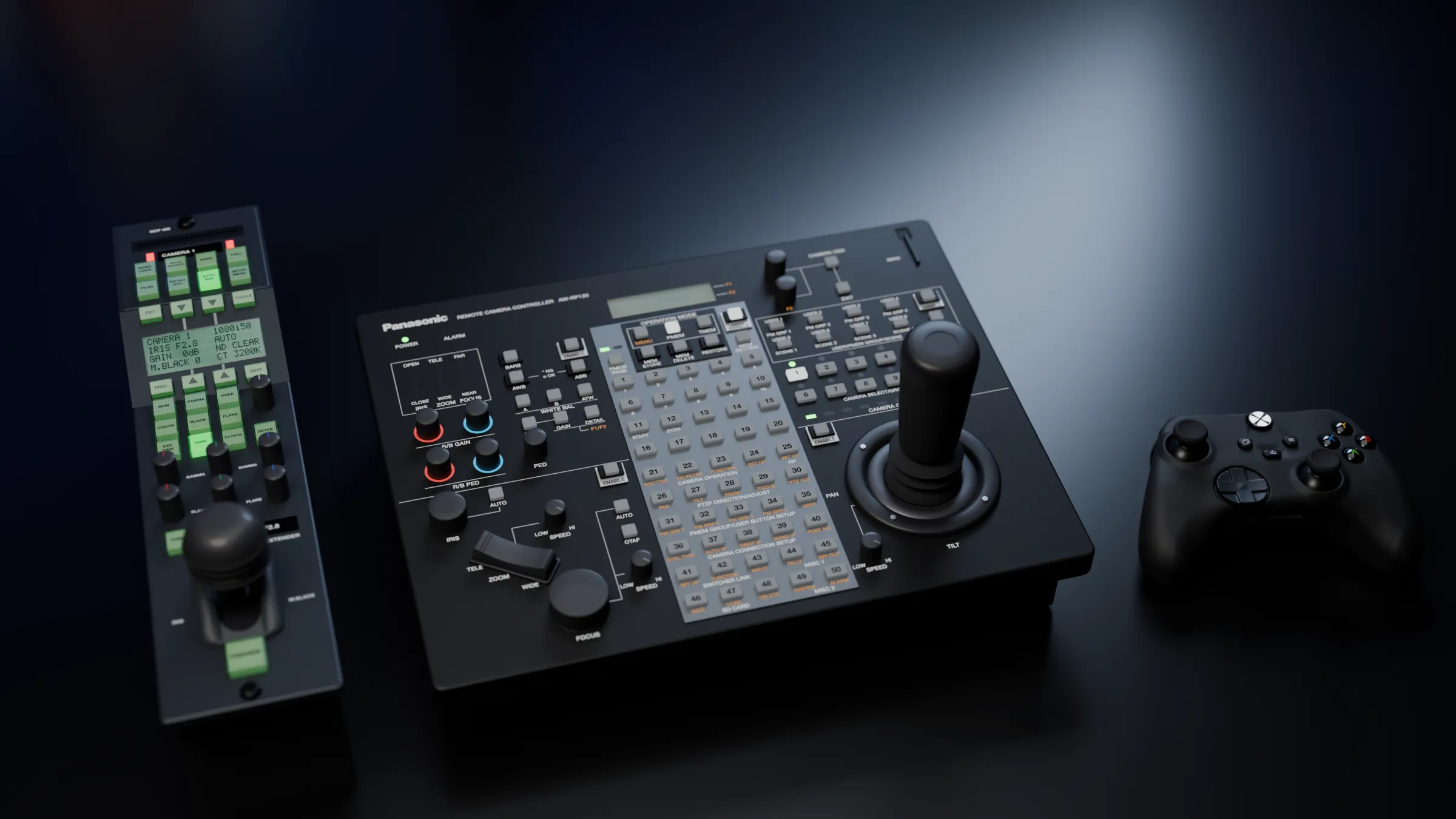
Iris, black, gain, paint and shutter for the selected camera, with its tally on the panel.
Camera select, pan, tilt, zoom and focus, including the Sony lenses. Its camera keys show tally.
Plugged in and mapped, ready to give a second operator zoom, focus and pan/tilt if the show needed one.
A multiview that knows the show
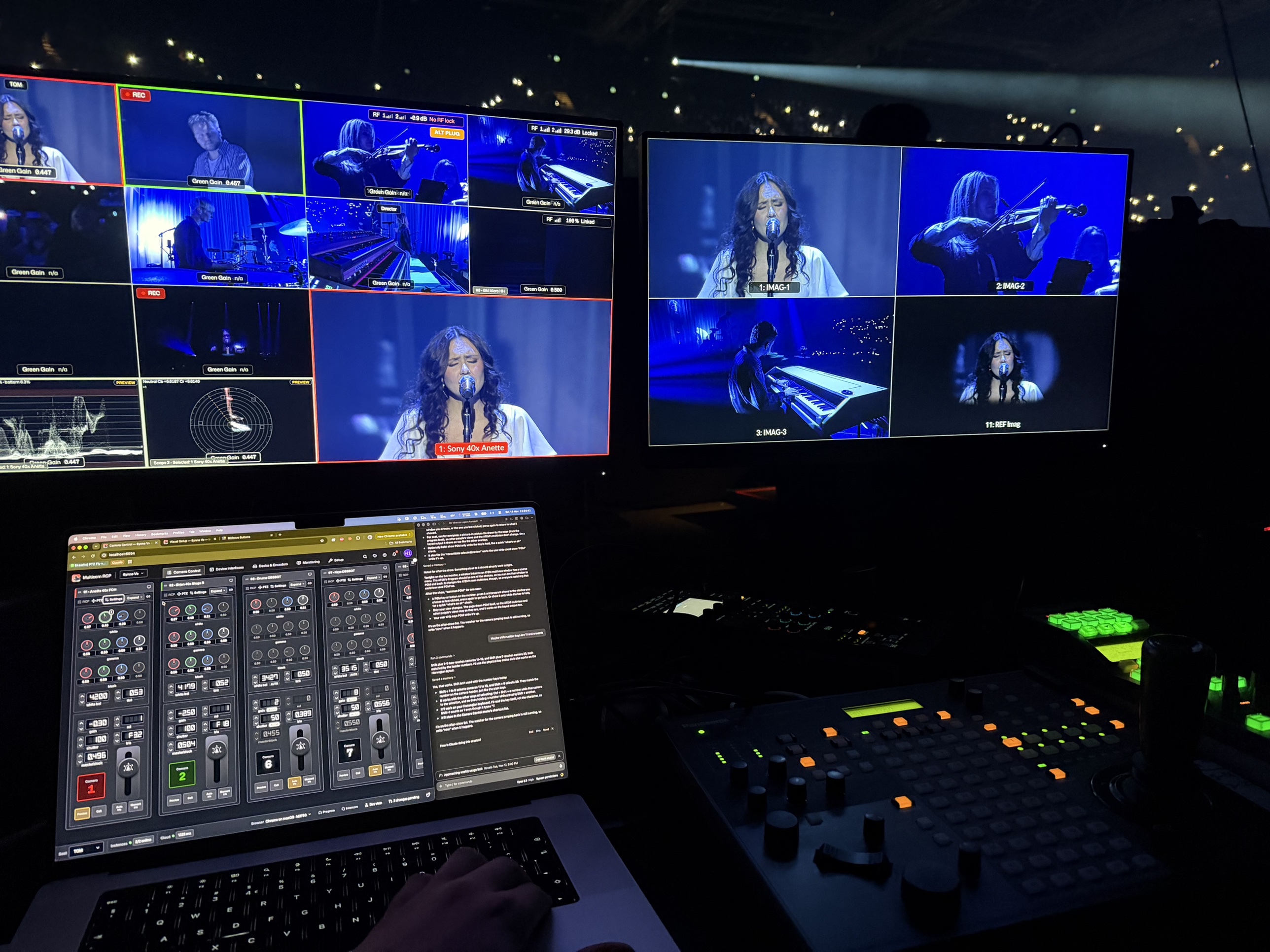
The TOM's multiview is the ATEM's own, with a Multicam overlay keyed on top by a DeckLink: who has each camera, what is recording, how the radio links are doing, and which control is being moved.
 1
1
2
2
3
3
3
4
5
5
6
6
7
8
A
B
C
D
On the left monitor, drawn by Multicam
- 1Seat badge. Which operator seat has that camera selected right now: TOM, Director, a camera op.
- 2REC. A HyperDeck is recording that source.
- 3RF readout. From the camera's own receiver module: bars per antenna input, MER and lock state on the Vislink links (29.3 dB Locked, or No RF lock), and link quality on the DJI SDR (100 % Linked on the Micro HH).
- 4ALT PLUG. The camera's picture is coming from its substitute input instead of its own, here while its RF has no lock.
- 5Adjusted control. The control being moved (here Green Gain) shown on every camera, n/a where a camera doesn't have it.
- 6Scopes. Waveform and vectorscope following the selected camera.
- 7Multicam labels. Drawn by Multicam, so the ATEM's own labels can stay off.
- 8Follows the selection. Multicam switches this big window to whichever camera TOM picks (RP120 or keys 1–10), so the camera being adjusted is always the big picture.
The left monitor is ATEM Multiview 3 with the Multicam overlay keyed on top by a DeckLink. The red and green borders are the ATEM's own tally.
Around it
- AATEM multiview without Multicam, for comparison: just the ATEM's labels.
- BMulticam RCP on the laptop. Camera Control strips for every camera; keys 1–10 pick the camera. Press several number keys together to select several cameras and adjust them all at once.
- CPanasonic AW-RP120. Picks the camera (HTTP selector) and drives pan, tilt, zoom and focus on the selected one. Its camera keys show tally.
- DGrass Valley OCP 400 (the green-lit keys). Follows the selected camera and shows its tally; see Control at the TOM seat.
Tally where people look
Multicam sends TSL UMD 5.0 to the CCUs, which light the red, green and yellow lamps on the cameras.
The iPhones on cams 3 and 4 show on-screen tally next to their control link.
The OCP 400, the RP120's camera keys and the GV Director's keys light with program and preview.
Grey dashed rows are examples of what's possible, not used at the show: GPIO tally lights driven by the RCP Micro, and the PTZ heads' own tally lamps.
The vision mixer's seat
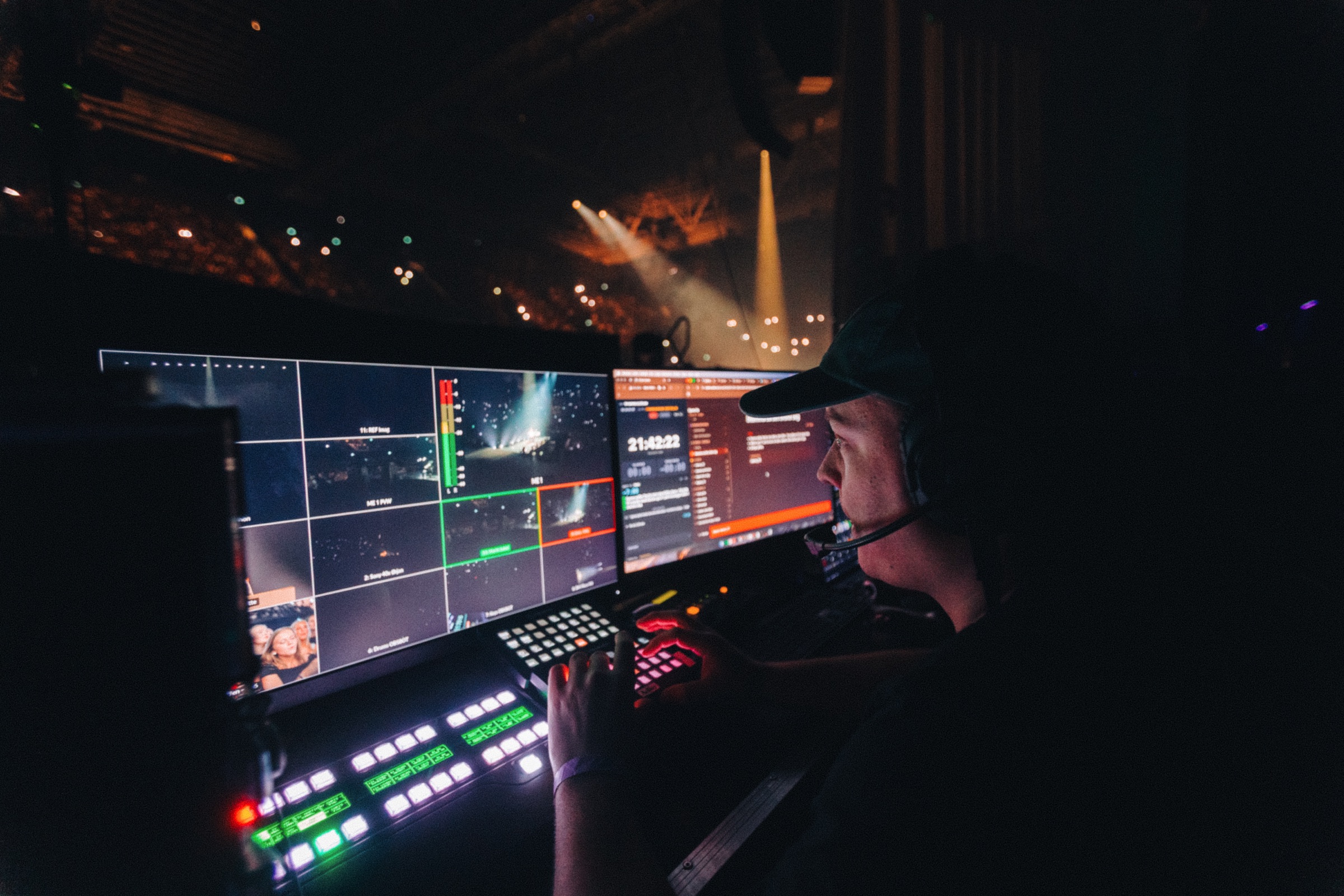
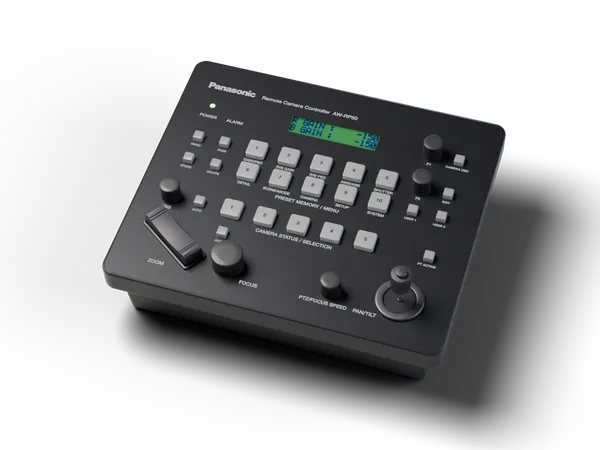
The vision mixer cut the show on a Grass Valley GV Director panel. Its built-in PC lent the panel and a Stream Deck to Multicam over the LAN, and Multicam turned the keys and T-bar into ATEM commands. An AW-RP50 was there to pick and nudge a camera.
 E
F
G
H
- EGrass Valley GV Director panel. Switches the ATEM through Multicam. The panel's own PC lends its USB boards to the Multicam Core over the LAN, and Multicam turns the keys and T-bar into ATEM commands; the keys light with the ATEM's program and preview.
- FStream Deck, lent to the Core the same way.
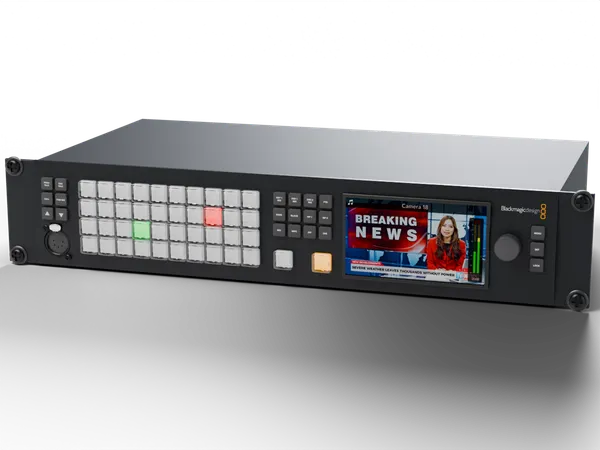
- GThe ATEM's own multiview for the vision mixer.
- HPanasonic AW-RP50 (the amber keys right of the Stream Deck). Lets the vision mixer pick a camera and nudge it if he wants to.
Moving a camera mid-show
A camera can move to another switcher input without anyone downstream noticing. Multicam knows each camera's substitute plug, and when a camera moves, everything that used it moves with it.
Planned: the pit camera moved to input 12 during the show.
Onto its cable when the radio link dropped. The multiview tile says ALT PLUG.
Standing by as a backup, ready to take over the same way.
The camera's window switched to the new input, so the operators kept watching the same camera in the same place.
The outputs feeding the HyperDecks switched too, so each recording kept its camera.
The camera's key on the vision mixer's panel cut the new input: same key, same camera.
Recording and the edit
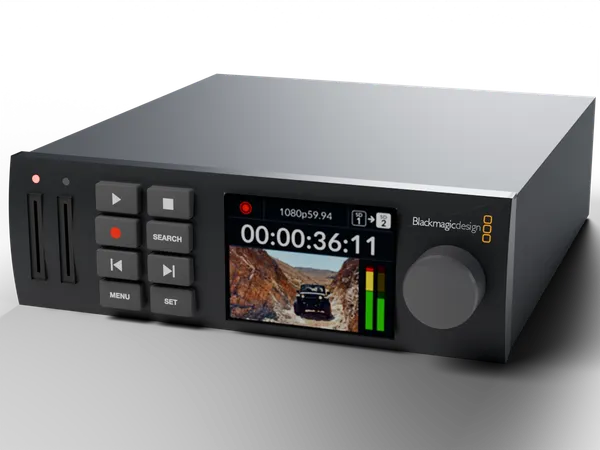
Five HyperDeck Studio HD Minis recorded switcher feeds in ProRes LT straight to a network share, started and stopped together from Decks & Encoders. The Switcher Logger turned every source change into an FCPXML timeline, ready to relink to the recordings.
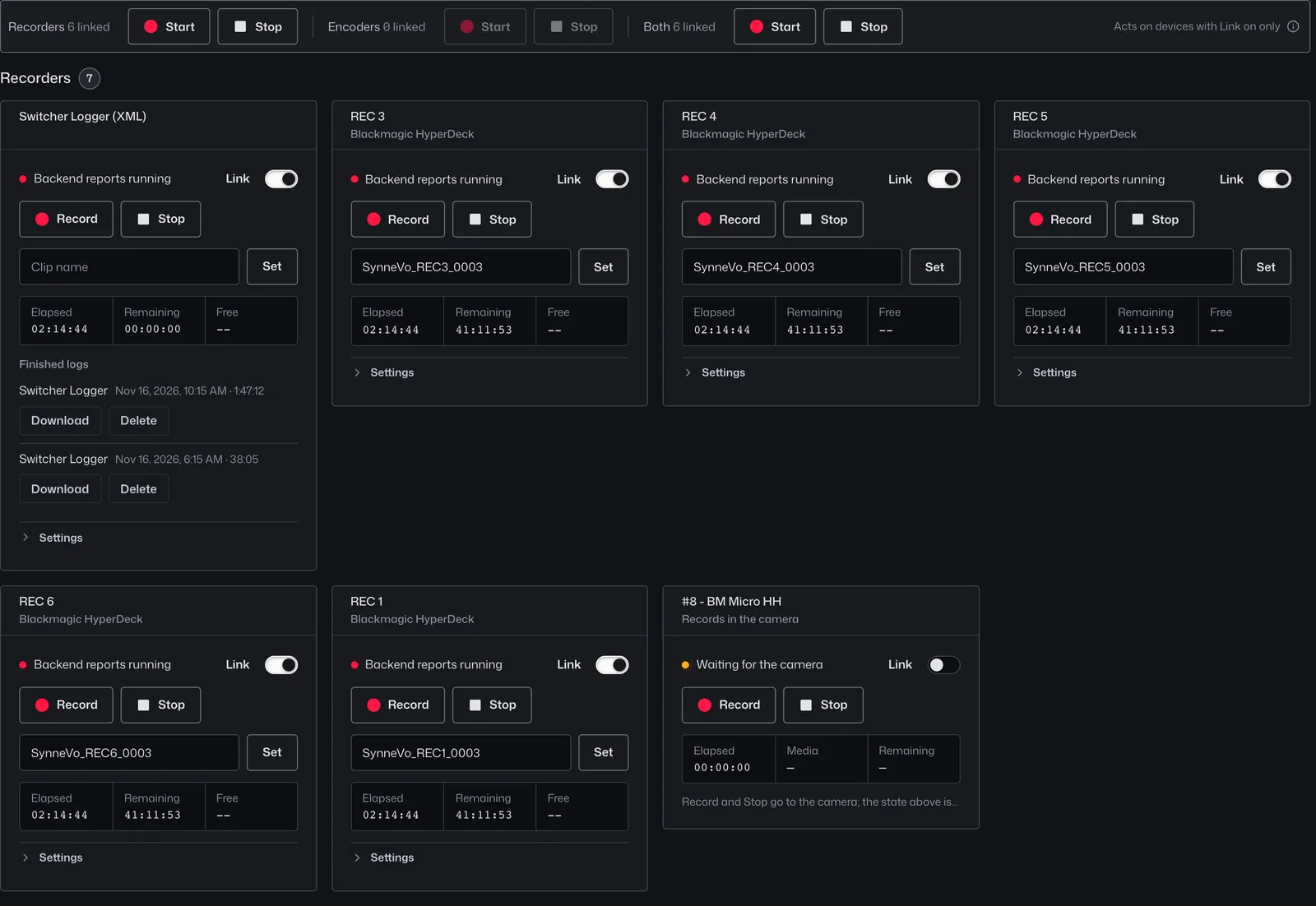
The app's Recorders page for this production. The recording shown (file names, times, the two logs) is a demo state.
In the app
The whole production in Multicam's Visual Setup: controllers, cameras, the switcher, the recorders and the multiview. This is the app's real page, running in your browser with the devices simulated.
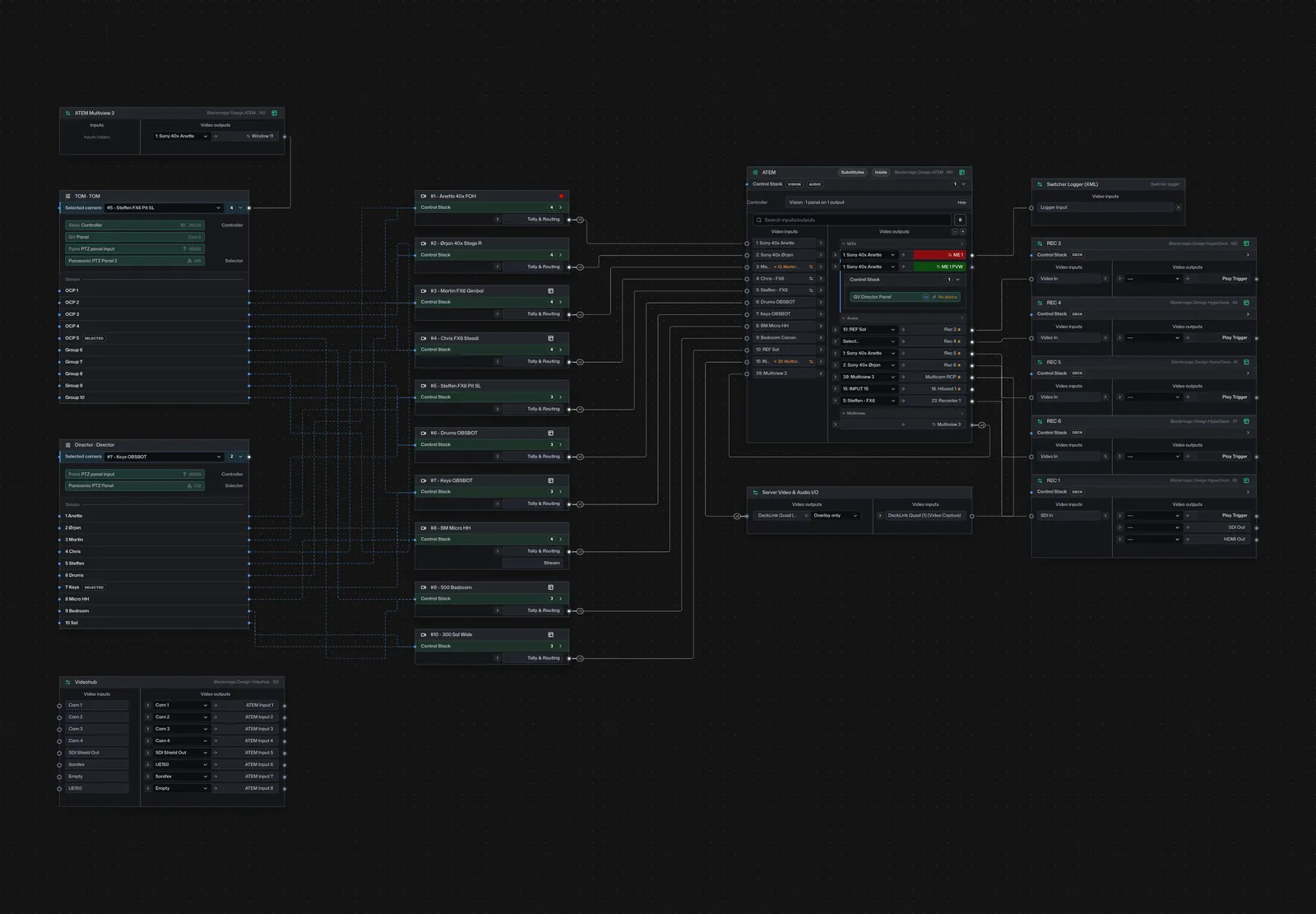
Every signal path, in one map
The crew
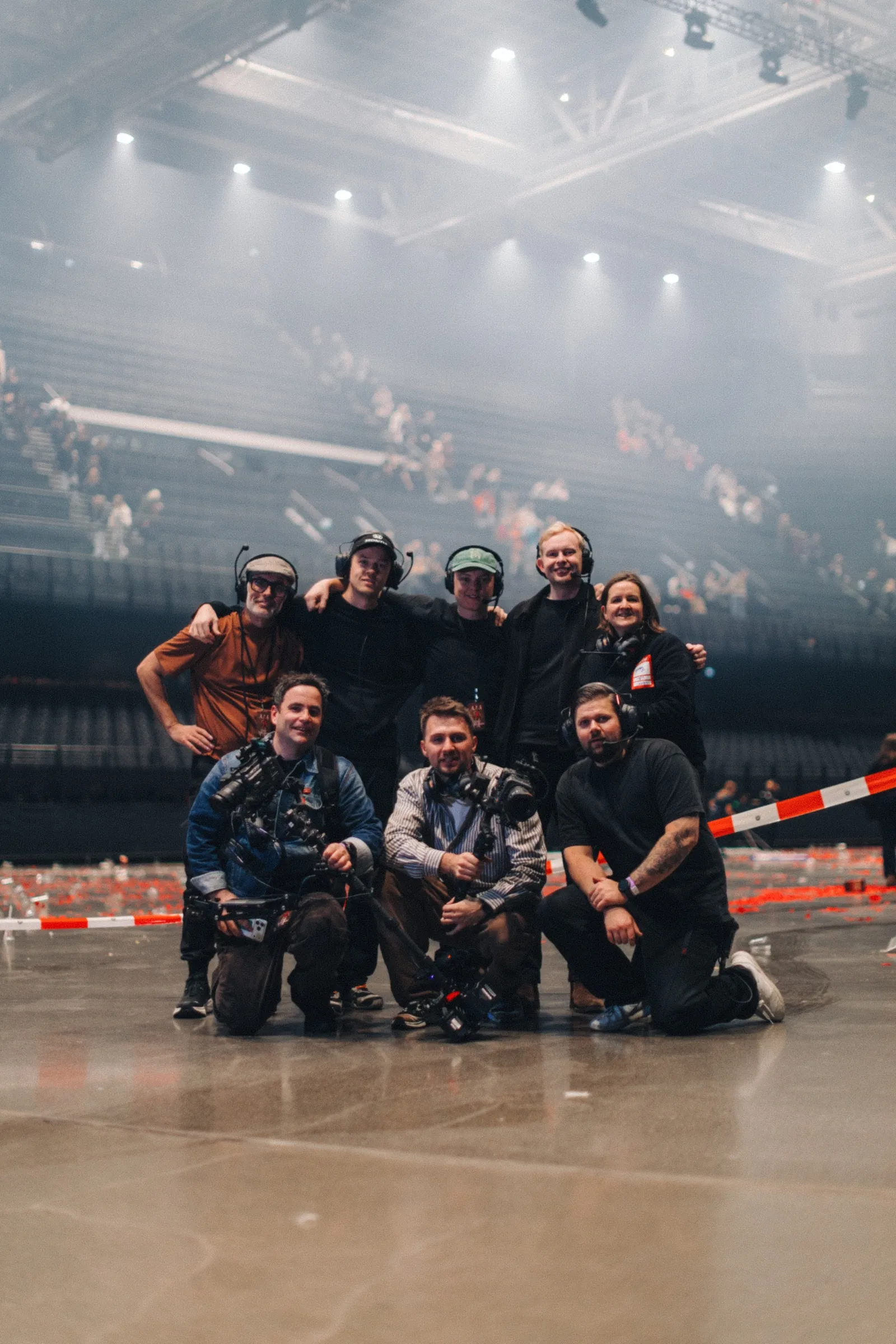
- Martin LitwickiProducer and director; cam 3, Sony FX6 on a gimbal
- Daniel KragsetVision mixer, Adler
- Håvard NjåstadTOM, Multicam RCP
- Anette FongenCam 1, Sony HDC-3500, 40x from FOH
- Ørjan AslaksenCam 2, Sony HDC-3500, 40x stage right, Scream Media
- Chris Thomas JohansenCam 4, Sony FX6 on a Steadicam, Mose Studios
- Steffen Vidar JenssenCam 5, Sony FX6 in the pit
- JoaoVisuals, DRIV.WORK